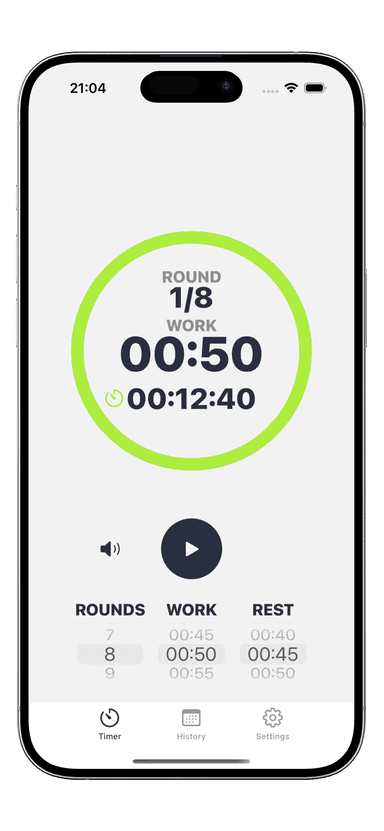
Best CrossFit Timer App for Apple Watch in 2026
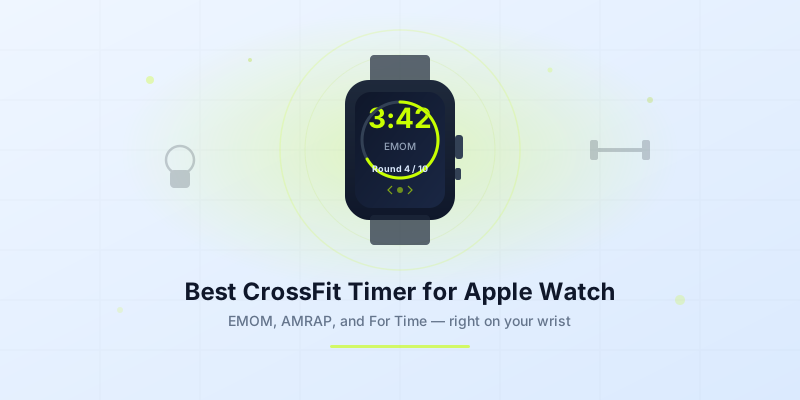
Finding the best CrossFit timer app for Apple Watch changes how you train. Instead of squinting at a phone across the gym or relying on a wall clock you can barely see mid-thruster, you glance at your wrist. The timer is right there — counting down, buzzing transitions, tracking rounds. Your hands stay on the barbell where they belong.
But not every timer app handles CrossFit well. Generic countdown timers fall apart when you need to switch between EMOM, AMRAP, and For Time modes in the same session. You need an app built for the way CrossFit actually works: multiple timer formats, haptic alerts you can feel through chalk-covered hands, and a display readable at arm's length while you're gasping for air.
Why You Need a CrossFit Timer on Your Apple Watch
A wall clock works fine when the entire class follows one timer. But the moment you scale a workout, modify a time cap, or train on your own, you need something personal. Your Apple Watch solves that problem.
Hands-free operation. During wall balls, rope climbs, or barbell cycling, you cannot pick up your phone. A wrist-based timer lets you check time without breaking movement patterns or losing grip.
Haptic alerts cut through noise. Gym environments are loud — music, dropped barbells, coaching cues. Audible beeps get buried. A strong vibration on your wrist tells you when to start, transition, or stop without relying on sound.
Instant visibility. A well-designed Apple Watch CrossFit app shows large numbers readable in a single glance. You see your remaining time, current round, or elapsed seconds without pausing.
Independent tracking. The best WOD timer Apple Watch apps run independently from your phone. Leave your iPhone in the locker or your gym bag. The watch handles everything on its own.
A 2024 survey by Morning Chalk Up found that 68% of CrossFit athletes use a smartwatch during training. Of those, over half said wrist-based timing improved their pacing during workouts. The data makes sense — when you can see your time without stopping, you make better decisions about when to push and when to recover.
Essential Features for a CrossFit Timer App
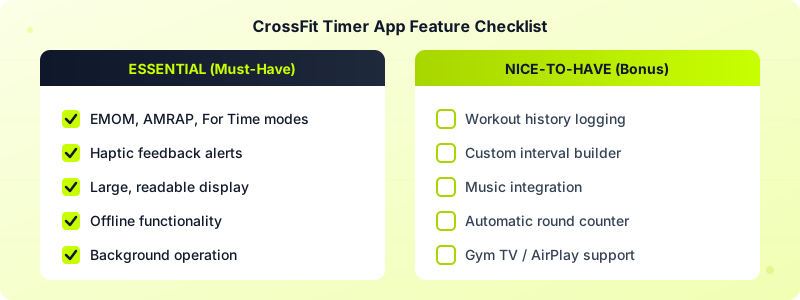
Not all timer apps are created equal. When you evaluate a CrossFit timer for Apple Watch, these features separate the useful from the frustrating.
Must-have features:
- Multiple timer modes. At minimum, you need EMOM, AMRAP, For Time, and Tabata. A single countdown timer is not enough for CrossFit programming.
- Haptic feedback. Strong vibration alerts at the start of each round, at time transitions, and at the final countdown (3-2-1). Without haptic alerts, the Apple Watch adds little value over a wall timer.
- Large, clear display. Numbers should fill the watch face. If you need to bring your wrist two inches from your eyes to read the time, the design has failed.
- Offline functionality. Gym Wi-Fi is unreliable. Your timer should work without any network connection.
- Background operation. The timer must keep running when you lower your wrist or the screen dims. Timers that pause when the display sleeps are useless during a WOD.
Nice-to-have features:
- Workout history. Logging your times lets you track progress across repeated benchmarks like Fran, Murph, or your custom WODs.
- Customizable intervals. Beyond preset modes, the ability to create custom work/rest patterns covers nonstandard programming.
- Music integration. Playing your playlist while the timer runs — without audio conflicts — keeps energy high.
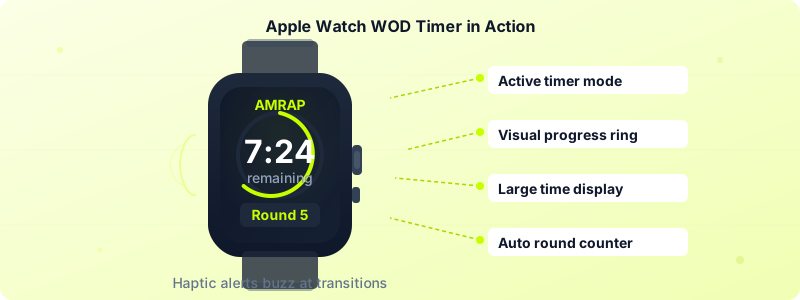
- Round counter. Automatic round counting during AMRAPs removes the mental burden of tracking where you are.
Interval Timer covers every feature on both lists. It supports EMOM, AMRAP, For Time, and Tabata modes on Apple Watch with strong haptic alerts, offline functionality, and workout history — all without requiring an account or collecting personal data. Check out our timer setup guide for step-by-step configuration.
EMOM, AMRAP, and For Time — Timer Modes That Matter
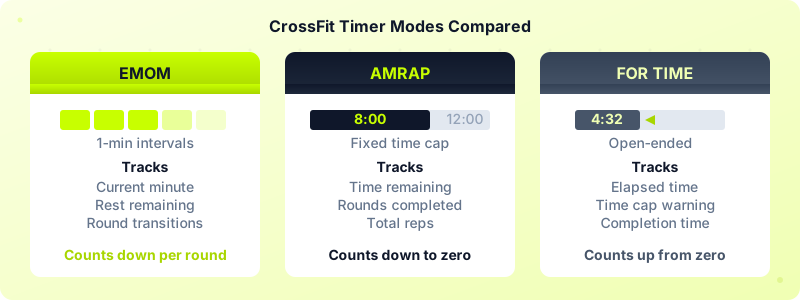
CrossFit programming uses three core timer formats. Each one tracks different things, and your timer app needs to handle all three correctly.
EMOM (Every Minute on the Minute)
The timer counts through fixed one-minute (or multi-minute) intervals. At the top of each interval, you begin your prescribed reps. Finish early, and you rest until the next interval starts. The timer alerts you at each new minute.
What the timer tracks: Current minute, total minutes remaining, and the transition between intervals. A good CrossFit timer Apple Watch app buzzes at each new minute so you know exactly when to start your next set.
A typical EMOM might look like: 12-minute EMOM of 5 deadlifts at 185 pounds. You complete 5 deadlifts each minute, resting whatever time remains. If you are new to EMOM training, start with our EMOM guide for a beginner-friendly at-home session.
AMRAP (As Many Rounds As Possible)
The timer counts down from a fixed time cap — typically 8 to 20 minutes. You cycle through a prescribed set of movements continuously, counting completed rounds. The timer just needs to run and alert you when time expires.
What the timer tracks: Elapsed time, remaining time, and ideally a round counter. During a 12-minute AMRAP of 10 box jumps, 10 push-ups, and 10 air squats, knowing you are in round 6 at the 8-minute mark tells you if you are on pace.
For Time
You perform a fixed amount of work as fast as possible, and the timer counts up from zero. When you finish, you stop the timer. Your completion time is your score.
What the timer tracks: Elapsed time counting up. Some For Time workouts have a time cap (for example, Murph has a common cap of 60 minutes). A good app lets you set an upper limit and alerts you if you approach it.
Understanding these three modes covers roughly 85% of CrossFit programming. When you add Tabata for conditioning work, you are equipped for almost any WOD your coach programs.
How to Use a CrossFit Timer During a WOD
Knowing the modes is one thing. Using them effectively during a workout is another. Here is how to get the most out of your Apple Watch CrossFit app during actual training.
Before the WOD:
- Read the whiteboard and identify the timer format (EMOM, AMRAP, or For Time).
- Set up the timer on your watch before the clock starts. Configure intervals, time caps, and round counts.
- Start the timer when the coach says "3, 2, 1, go" — or sync with the gym clock if training solo.
During the WOD:
- Glance, don't stare. Train yourself to check time in transitions — between movements, during short rest breaks, or while walking back from the wall. Do not stop mid-rep to look at your watch.
- Use haptic cues as triggers. When you feel the buzz at a new EMOM minute, start moving immediately. Build the habit of responding to the vibration without looking.
- Trust the round counter. During long AMRAPs (15+ minutes), mental fatigue makes manual counting unreliable. Let the app track rounds so your brain can focus on movement.
After the WOD:
- Log your score (time, rounds, or reps) in the app or your gym's tracking system.
- Review your splits if the app provides them. Seeing that your EMOM rest periods shrank from 20 seconds to 8 seconds across 10 rounds tells you the weight was too heavy — or your conditioning needs work.
For a broader look at structuring interval workouts beyond CrossFit, check out our HIIT workout guide which covers work-to-rest ratios and beginner-friendly programming.
Try Interval Timer on Your Apple Watch
The best CrossFit timer app for Apple Watch is the one you actually use every session — the one that loads fast, reads clearly from a distance, and buzzes hard enough to feel through lifting gloves.
Interval Timer delivers exactly that. EMOM, AMRAP, For Time, and Tabata modes run directly on your Apple Watch with full haptic alerts and a clean, high-contrast display. No account required. No data collection. Works offline, so poor gym Wi-Fi is never a problem.
Set up your first WOD timer in under 30 seconds, save it to your watch, and never miss a round transition again.
Download Interval Timer and start timing your CrossFit workouts from your wrist.