HIIT on Apple Watch: Custom Workout Setup Guide
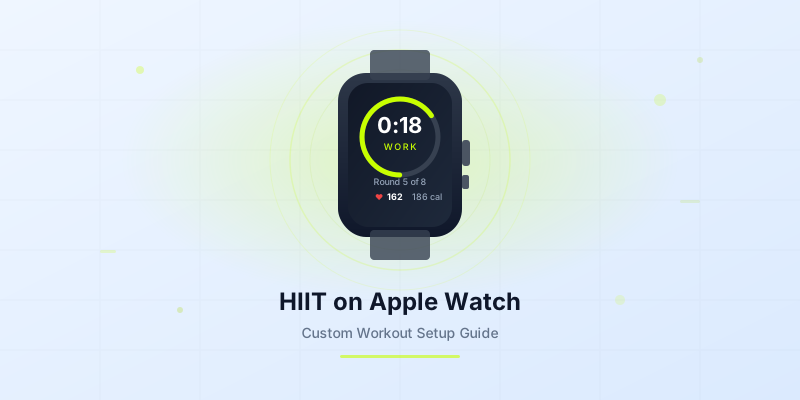
Your Apple Watch can do more than count steps and ping you about standing up. With the right setup, it becomes a powerful HIIT timer strapped to your wrist — delivering haptic cues, tracking your heart rate, and keeping every interval on point. If you have been wondering how to set up a custom workout for HIIT on Apple Watch, this guide walks you through every step.
Why Use Your Apple Watch for HIIT Workouts
HIIT demands precision. You need to hit exact work and rest windows to get the most out of each round. Glancing at a phone across the room or watching a wall clock mid-burpee is a recipe for sloppy timing.
Your Apple Watch solves that. It taps your wrist when intervals change, so you never have to break focus. You keep your eyes on form, not a screen.
Beyond timing, your watch captures real-time heart rate data. During a 20-minute HIIT session, you can burn 250-400 calories — but only if you hit the right intensity zones. Your Apple Watch shows you exactly when you are in the target zone and when you are coasting.
It also logs every session to Apple Health automatically. Over weeks, you build a detailed history of duration, calories, and heart rate trends. That data helps you set up an interval timer that matches your actual fitness level — not just a generic template.
Step-by-Step: Setting Up a Custom HIIT Timer on Apple Watch
Setting up a custom HIIT workout on Apple Watch takes about two minutes. Here is the process from start to finish.
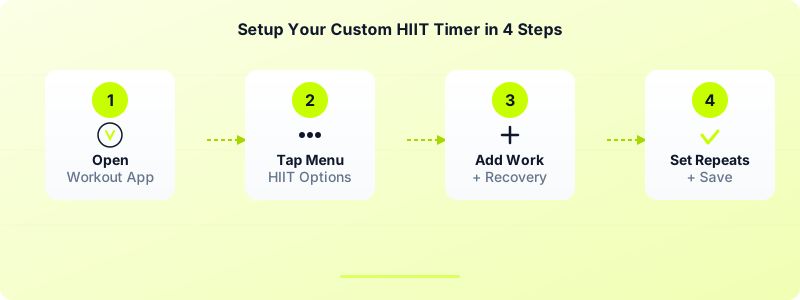
Step 1: Open the Workout app. Press the Digital Crown on your Apple Watch and tap the green running figure icon. Scroll until you find "High Intensity Interval Training."
Step 2: Tap the three-dot menu. Next to the HIIT option, tap the ellipsis icon (three dots). This opens the customization panel where you can build your own interval structure.
Step 3: Create your custom workout. Tap "Custom," then tap "Create Workout." You will see options for Warmup, Work, Recovery, and Cooldown. Tap "Add" to insert work and recovery intervals. Set each interval to a specific time — for example, 30 seconds of work followed by 30 seconds of recovery.
Step 4: Set repeats and save. Tap "Repeats" to loop your work/recovery pair for as many rounds as you want. A typical beginner session uses 8-10 rounds. Name your workout something memorable, then tap "Done."
That is it. Your custom HIIT timer now appears in the Workout app, ready to launch with a single tap.
Best HIIT Timer Settings for Apple Watch
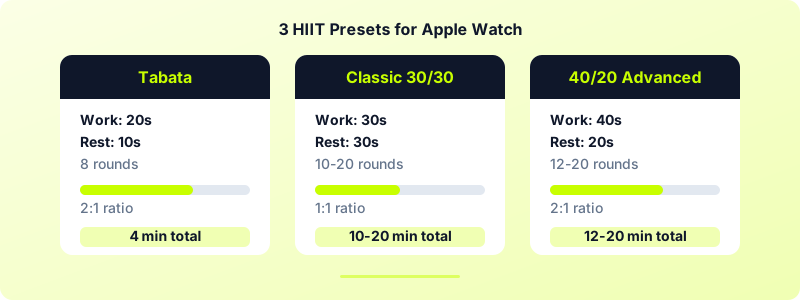
Not every HIIT workout uses the same intervals. Here are three proven presets you can build on your Apple Watch right now.
Tabata (4 minutes total)
- Work: 20 seconds
- Rest: 10 seconds
- Rounds: 8
- Warmup: 2 minutes
- Cooldown: 2 minutes
Tabata is the gold standard of short, brutal HIIT. Eight rounds of 20 seconds all-out effort with just 10 seconds of rest. Total active time is only 4 minutes, but your heart rate will stay elevated for up to an hour afterward.
Classic 30/30 (10-20 minutes)
- Work: 30 seconds
- Rest: 30 seconds
- Rounds: 10-20
- Warmup: 3 minutes
- Cooldown: 3 minutes
The 1:1 work-to-rest ratio is ideal if you are starting with HIIT for the first time. It gives you enough recovery to maintain good form throughout the entire session.
40/20 Advanced (12-20 minutes)
- Work: 40 seconds
- Rest: 20 seconds
- Rounds: 12-20
- Warmup: 3 minutes
- Cooldown: 3 minutes
This 2:1 ratio pushes your cardiovascular system harder. You spend more time under load and less time recovering. Only use this once you can complete a full 30/30 session without your form breaking down.
Each of these presets takes under a minute to build using the steps above. Save all three as separate custom workouts so you can pick the right one based on your energy level that day.
Tips for a Better Apple Watch HIIT Experience
A custom timer is only half the equation. These settings and habits make a real difference in how well your Apple Watch performs during intense intervals.
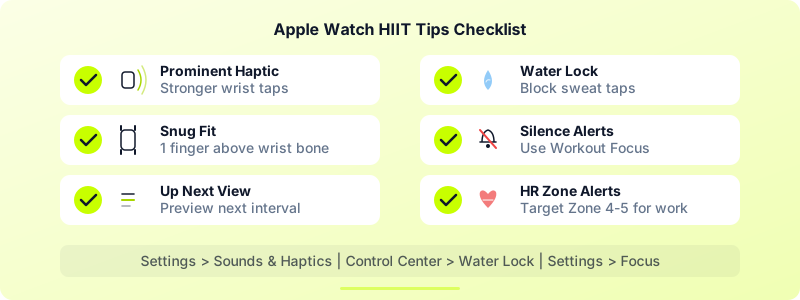
Turn on Prominent Haptic. Go to Settings > Sounds & Haptics and enable "Prominent Haptic." This makes the wrist taps stronger and harder to miss during high-effort intervals when your heart is pounding.
Enable Water Lock. Sweat can trigger accidental touches that pause or end your workout. Swipe up from the watch face to open Control Center and tap the water drop icon to lock the screen. Turn the Digital Crown to unlock it when you are done.
Wear it snug, one finger above the wrist bone. A loose watch slides around and loses heart rate accuracy. Position it about a finger's width above your wrist bone and tighten the band so it stays in contact with your skin.
Silence notifications. Set up a Workout Focus in Settings > Focus to block notifications during exercise. A text alert mid-set is distracting and can throw off your interval count.
Check the "Up Next" view. During custom workouts, your Apple Watch shows what interval is coming next. Glance at it during rest periods so you know exactly when to ramp up again.
Use heart rate zone alerts. In your custom workout settings, add heart rate zone alerts. Target Zone 4-5 during work intervals and Zone 2-3 during rest. Your watch taps you if you drop too low or push too hard.
The Best HIIT Timer App for Apple Watch
The built-in Workout app handles basic HIIT interval timers well. But if you train regularly, you will notice its limits. You cannot stack different interval lengths in one session, there is no background music, and workout history is buried inside Apple Health.
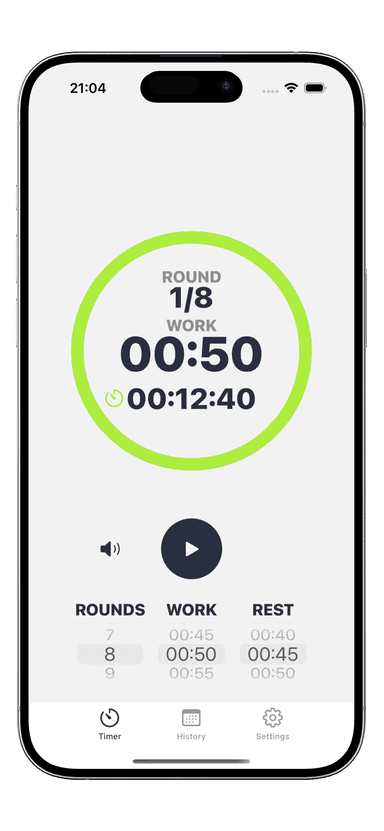
Interval Timer fills those gaps. It runs natively on Apple Watch with full haptic alerts, so you get the same wrist-tap cues without pulling out your phone. You can build custom intervals for HIIT, Tabata, EMOM, AMRAP, and circuit training — all in one app.
What makes it stand out for Apple Watch HIIT workouts:
- Custom interval sequences — Mix different work and rest durations in a single session. Run a Tabata round, then switch to 40/20 without rebuilding your timer.
- Vibration alerts — Strong haptic feedback marks every interval change. No sound needed, perfect for early morning sessions or crowded gyms.
- Workout history — Every session is logged automatically. Track your consistency and see how your training volume grows week over week.
- Background music — Play your playlist while the timer runs. No app switching required.
- Works offline — No internet connection needed. Your watch handles everything independently.
The app is free to start with basic timers and preset workouts. Premium unlocks the Apple Watch companion, custom intervals, workout history, and background music for $1.99/month or $19.99 for lifetime access.
Whether you are building your first CrossFit timer on Apple Watch or dialing in advanced interval structures, a dedicated timer app makes every session smoother and more productive.
Download Interval Timer and set up your first custom HIIT workout on Apple Watch in under a minute.